From Figma to code with AI: what works, what breaks
An AI connected to Figma can write the code for a screen in a few minutes. The result depends almost entirely on the file you give it. Here's what I prepare beforehand, what I hand over without worry, and the mistakes I systematically look for afterward.
AI reads the structure, not the picture
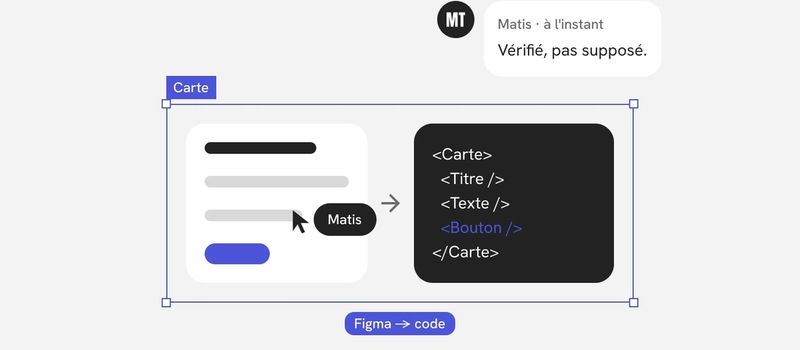
This is where everything else starts. When AI reads a Figma file, it doesn't look at the screen the way a person does. It reads what the screen is made of: layers, their names, their properties, and the variables and components they use.
A well-built file tells it exactly what to write. A poorly built file leaves it guessing. And when it guesses, it produces something plausible, not something correct.
In other words, the move to code starts in Figma, long before the first generated line.
The four prerequisites in the file
I don't start any translation until these four points are in place.
1. Variables for every value
Every color, every text size, every spacing value, every corner radius goes through a variable. A hard-coded color lands in the code as an isolated value that nobody will ever connect back to the rest of the system.
With variables, AI doesn't write a value: it writes a reference. If the file says “secondary text,” the code says “secondary text.” And any later change to the value happens in one place, on both sides.
2. Components for every repeated element
A button drawn ten times becomes ten slightly different buttons in the code. A button built as a component, with its variants and properties, becomes a single component used ten times.
Properties matter as much as the component itself. A “size” property with the values “small” and “large” becomes a component parameter in the code. It's the most reliable translation there is, because there's nothing to interpret.
3. Auto Layout everywhere
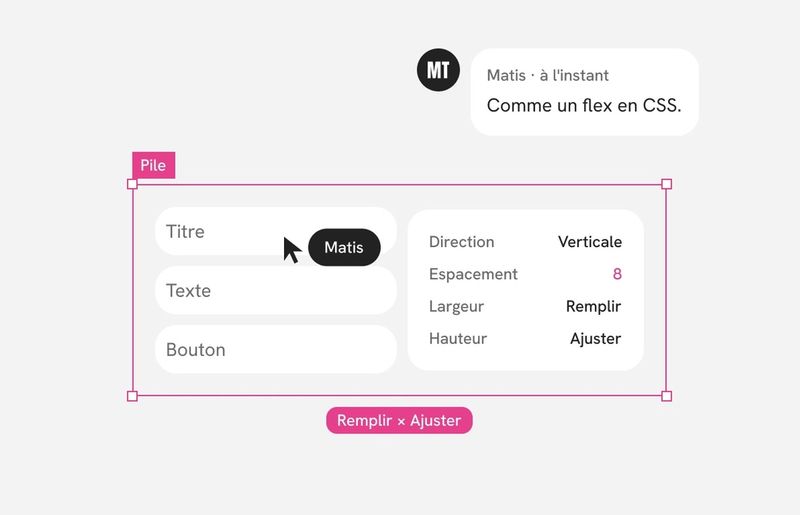
Without Auto Layout, a screen is just a collection of elements placed at coordinates. AI then reproduces those coordinates, and the interface breaks as soon as the width changes or a line of text gets longer.
With Auto Layout, the file describes an intent: these elements stack, this gap stays constant, this block takes the full available width. That's exactly what the code needs to know in order to adapt.
4. Names that mean something
“Frame 427” or “Rectangle 12” tell AI nothing. “Project card,” “Header,” “Article list” give it both the element's purpose and the name of the component to write.
I align these names with the code's vocabulary whenever I can. Two different vocabularies always end up producing two versions of the product.
What AI does well
On a file that meets these four prerequisites, AI is very effective at the long, mechanical work:
- laying the foundations: turning the file's variables into code variables, with the same names and the same modes, light and dark, mobile and desktop;
- writing simple components with their variants, based on the properties declared in Figma;
- assembling a screen from components that already exist, without rewriting them;
- reproducing the layout described by Auto Layout, with the right spacing and the right alignment;
- applying a change everywhere, when a variable or a component evolves.
These are exactly the tasks where a person eventually starts cutting corners. AI doesn't, as long as the rule is written down somewhere.
What breaks
Even on a clean file, some mistakes keep coming back. I know them, so I look for them.
Made-up values. As soon as an element slips past the variables, AI fills the gap with a close value. An almost identical gray, spacing that's off by a few pixels. To the eye, nothing shows. In the code, the system has just lost its consistency.
States that don't exist. If hover, disabled, or error states aren't designed, AI either invents them or forgets them. Either way, it's a design decision made without me.
Duplicate components. Instead of reusing a component that's already in the code, AI sometimes writes a new, nearly identical one. A few screens later, there are three cards instead of one.
The wrong kind of element. A clickable rectangle in Figma can become a plain block in the code instead of a real button or a real link. It displays correctly, but it can't be used with a keyboard and a screen reader doesn't understand it.
Behavior between two sizes. The file often shows a mobile version and a desktop version. What happens in between isn't designed anywhere. AI extrapolates, sometimes well, sometimes not.
Real text and real content. A mockup shows a three-word title. The real content runs to twelve words, or is missing. If these edge cases aren't described, the code doesn't handle them.
What all these mistakes have in common: they show up where the file is silent. Hence my rule, which I mentioned in my article on AI in my work: nothing gets inferred silently. Whatever is missing becomes a question, not an assumption.
How I check
I never judge the result on AI's word, or at a glance. I check against the evidence, with five checks.
- Side-by-side comparison. A screenshot of the coded screen next to the mockup, at the same widths. I look at spacing, text sizes, alignment. Differences of a few pixels are exactly the ones you don't notice without comparing.
- Hunting for isolated values. I have the code searched for every color and size that's hard-coded outside the variables. Each occurrence is either a mistake or a variable missing from the file.
- Running through the states. I go through every component in all its states: hover, focus, disabled, error, empty, loading. Anything that wasn't planned for shows up here.
- Stretching. I resize the window continuously, and I swap the text for very long and very short versions. A screen that holds up at two specific widths doesn't necessarily hold up in between.
- Accessibility and performance. Automated thresholds, checked on every change. Keyboard navigation, contrast, element semantics, page weight.
The last two checks are the ones I automate first. They don't get tired, and they don't make exceptions.
My working rules
Beyond the checks, a few simple rules prevent most problems.
- One component before the screen. I have a first component translated and approved before starting a full screen. If the component is wrong, everything that uses it will be too.
- One screen before the rest. Same logic, one level up. The first screen reveals the file's flaws, which I fix in Figma before moving on.
- Fix it at the source. When a mistake comes from the file, I fix it in the file, not just in the code. Otherwise it will come back with the next translation.
- List the existing components. I give AI the list of components already in the code, with the instruction to reuse them. It creates far fewer duplicates.
- Describe what can't be drawn. Behavior between two sizes, edge-case content, rare states: a few lines in the component description are enough.
What this changes for developers
I no longer hand over a picture to interpret. I hand over a working foundation, built on the same variables and the same components as the file. The conversation with developers is no longer about “does it look right,” but about “is it built right.”
It doesn't replace them. Architecture, data, and real-world performance remain their domain. But the gap between the mockup and the product, which used to cost endless back-and-forth, shrinks from the start.
In short
AI faithfully translates what a file says, and invents what it doesn't. The whole job is to make the file say as much as possible, then to verify what's left with checks rather than trust.